Main line and highlight
Edit the caption and emphasized phrase as separate fields.
 TypeMotion.Art
Create a caption card with an emphasized word. Enter the line and keyword in the editor below.
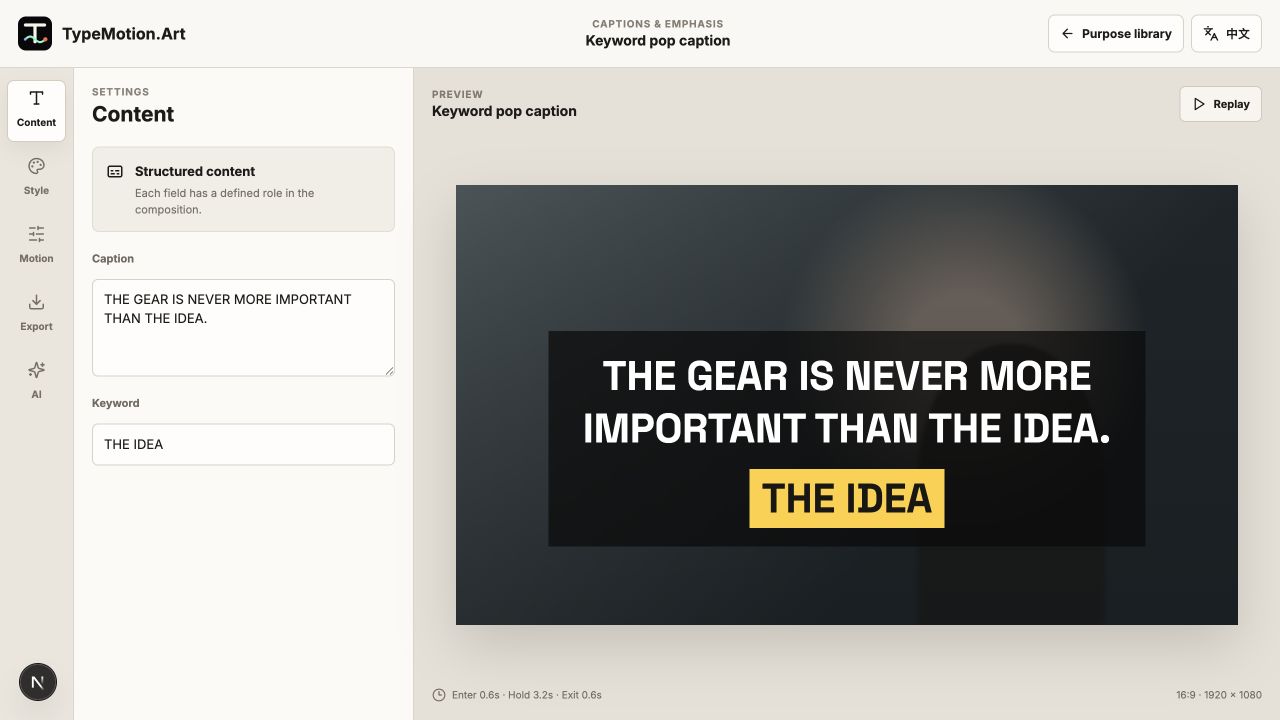
This tool animates manually entered caption text. It does not transcribe audio or synchronize words automatically; use the text animation studio's SRT/VTT track controls when you already have timed captions.
TypeMotion.ArtAnimated captions can guide attention to a key phrase without making every word compete for emphasis. They are useful for short spoken lines, quotes, hooks and moments that need a visual beat.
The Keyword Pop Caption editor separates the main line from its highlighted phrase. Enter both, adjust type and motion, then check the caption against your actual audio in the video edit.
Start in the editor above and inspect the result as you work.
This tool animates manually entered caption text. It does not transcribe audio or synchronize words automatically; use the text animation studio's SRT/VTT track controls when you already have timed captions.
Play the whole animation to check legibility, entrance and exit timing, and the frame edges. Switch aspect ratios and review again if you need portrait or square output.
Choose size and format in Download. A Day Pass or subscription is required; check the rendered file in your target editor.
These capabilities are available in the current workspace.
Edit the caption and emphasized phrase as separate fields.
Set font, size, color and a contrast-building backdrop for footage.
Adjust entrance, hold and exit timing for the graphic before aligning it in the edit.
Try word-by-word, boxed or bilingual templates for a different reading pattern.
Emphasize the one phrase that carries the point of the opening line.
Make a critical step visible while the action continues on screen.
Highlight a memorable phrase while keeping the rest of the sentence readable.
Each card opens a working template editor.
A caption line with a separately editable emphasis phrase.
Customize template ↗The workspace exports rendered media, not a Premiere, CapCut or DaVinci Resolve project file.
A standard clip with its background, suitable for a full-frame graphic or non-transparent element on a timeline.
Choose a transparent background for WebM with alpha. Check that your destination editor supports the format and transparency.
A ProRes 4444 file with alpha for Premiere, DaVinci Resolve, and Final Cut. It is a rendered clip, not an editable project. Currently limited to 1080p, 30 FPS, and 8 seconds.
Replaces the canvas background with pure green (#00FF00), then exports an MP4. Use it in CapCut, 剪映 and other editors that key out green. Graphics using that same green are removed too.
GIF suits a short loop; PNG is a still frame. Neither is an editable text project with a timeline.
Answers about the controls and limits of the current product.
No. Enter the caption yourself. This page is a motion-graphic maker, not a speech-to-text service.
Yes. The Caption and Keyword fields are separate so you can make the emphasized phrase stand out.
Export the graphic and place it on the timeline at the spoken moment. Use transparent WebM or Green Screen MP4 when the caption should sit over footage, then check timing against the recording.
Yes. Open Bilingual Subtitle in the video template library for a dedicated two-line layout; this page starts with the keyword-emphasis style.
Replace the sample content, review the whole preview, then choose an export format for your edit.
Back to the editor ↗Choose another motion format and keep editing in your browser.