Count up or down
Set the starting value above or below a target to animate toward it in either direction.
 TypeMotion.Art
Turn headline metrics into a moving KPI card. Edit the data table below to replace the sample figures.
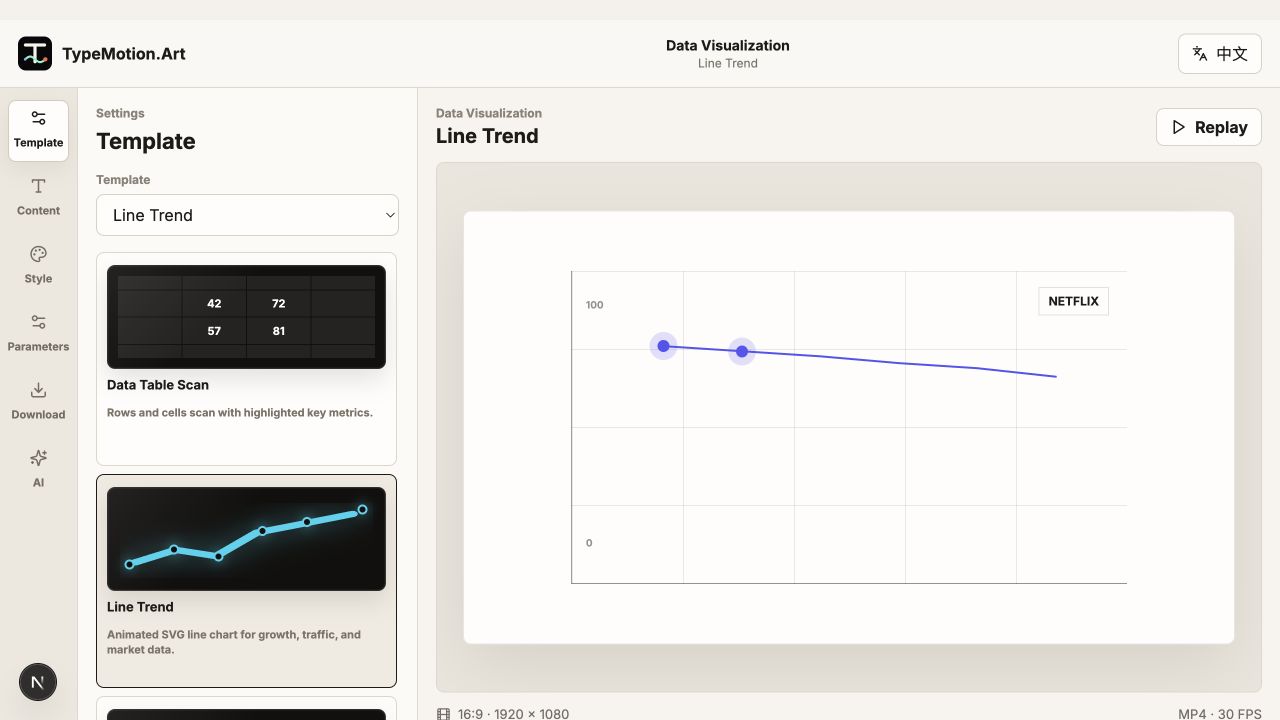
The number-count template animates each metric toward its supplied value. Use the data editor to change labels and values, and the parameters panel to tune timing.
TypeMotion.ArtA count-up gives a milestone a beginning and an end. Use it for a result worth noticing: views, customers, revenue, donations or a progress figure.
The counter editor accepts rows of metric names, target values and optional change labels. Set a shared starting value, duration and number style, then replay to check whether the target settles clearly.
Read the full making guide ↗Start in the editor above and inspect the result as you work.
The number-count template animates each metric toward its supplied value. Use the data editor to change labels and values, and the parameters panel to tune timing.
Play the whole animation to check legibility, entrance and exit timing, and the frame edges. Switch aspect ratios and review again if you need portrait or square output.
Choose size and format in Download. A Day Pass or subscription is required; check the rendered file in your target editor.
These capabilities are available in the current workspace.
Set the starting value above or below a target to animate toward it in either direction.
Enter values such as 10,000 without the preview reducing them to a percentage scale.
Choose plain numbers, USD currency or percent formatting for the displayed values.
Set the count duration and edit metric names and change labels directly in the data grid.
Count toward a subscriber, view or download total.
Present a few KPIs with clear labels and optional deltas.
Set the start higher than the target when a number should visibly fall.
Each card opens a working template editor.
The workspace exports rendered media, not a Premiere, CapCut or DaVinci Resolve project file.
A standard clip with its background, suitable for a full-frame graphic or non-transparent element on a timeline.
Choose a transparent background for WebM with alpha. Check that your destination editor supports the format and transparency.
A ProRes 4444 file with alpha for Premiere, DaVinci Resolve, and Final Cut. It is a rendered clip, not an editable project. Currently limited to 1080p, 30 FPS, and 8 seconds.
Replaces the canvas background with pure green (#00FF00), then exports an MP4. Use it in CapCut, 剪映 and other editors that key out green. Graphics using that same green are removed too.
GIF suits a short loop; PNG is a still frame. Neither is an editable text project with a timeline.
Answers about the controls and limits of the current product.
Yes. Put a higher number in Starting value than in the target-value column.
Yes. The Number style control offers plain numbers, USD currency and percent. It does not currently support arbitrary currency symbols.
Type 10000 into the Value cell. The preview adds a thousands separator when displaying the animated result.
Not in the current layout. One Starting value controls the visible counters, while each row has its own target.
Replace the sample content, review the whole preview, then choose an export format for your edit.
Back to the editor ↗Choose another motion format and keep editing in your browser.